


Here are answers to some common questions involving our products. If your question or issue isn't addressed below, please click here.
- Can I still buy Kaleidoscope Kreator software?
- Can I still get support for my Kaleidoscope Kreator software?
- I need to re-install but I didn't make a backup of my downloads - what do I do now?
- I received my download instructions e-mail, but I can't get the download link to work.
- How do I make a backup copy of my downloaded software?
- Can I install the software onto a second computer?
- I saved the setup file to my hard drive but can't find it - where did it go?
- I get an error when I try to run the setup file that I just downloaded.
- I get a compatibility alert when installing Kaleidoscope Kreator 2.0 on my Windows 10 computer.
- How do I install Kaleidoscope Kreator from my CD if my computer does not have a CD/DVD drive?
- When I try to start Kaleidoscope Kreator 3 it says "An unexpected error has occurred".
- What is the .NET Framework and why is it installed when I install Kaleidoscope Kreator?
- Where do I redeem my prepaid download cards?
- When I try to enter the code from my prepaid download card, it says it has already been redeemed.
- When I enter my license key, Kaleidoscope Kreator says that it could not be validated.
- I'm entering the name and license key values correctly, but Kaleidoscope Kreator still won't accept them.
- After I enter the name and license key, I see an error about "insufficient permission".
- I have the CD version of Kaleidoscope Kreator (or a template pack) but can't find the license key label anywhere.
Upgrading to Kaleidoscope Kreator 3
- Can I install the Kaleidoscope Kreator 3 Upgrade on my new computer without having to install a previous version first?
- I'm trying to unlock the Kaleidoscope Kreator 3 Upgrade and it won't recognize that I have a previous version installed.
- Will Kaleidoscope Kreator 3 work with my existing KK 2.0 Template Packs?
- Will Kaleidoscope Kreator 3 work with my saved KK 2.0 workspaces?
- Which version of Kaleidoscope Kreator do I have?
Kaleidoscope Kreator System Requirements
- What version of Windows do I need to use Kaleidoscope Kreator 3?
- Can I use Kaleidoscope Kreator on my Mac?
- Are there any updates for Kaleidoscope Kreator 3?
- Are there any updates for Kaleidoscope Kreator 2.0?
- When I try to install my template pack it says Kaleidoscope Kreator is not currently installed, even though KK3 is clearly present on my computer.
- I get an error when I try to install the Quilters' Polygons Template Pack on Windows Vista (or a later version of Windows).
| Can I still buy Kaleidoscope Kreator software? | Back to top |
|
Sales of Kaleidoscope Kreator and all companion products ended on October 31st, 2019 (more info). If you have an unused prepaid download card for one of our products, it is still valid and can be redeemed here. If you need a new download for a previously-purchased item, see below. | |
| Can I still get support for my Kaleidoscope Kreator software? | Back to top |
|
We are still currently providing (e-mail only) product support to existing Kaleidoscope Kreator customers. If you are having an issue and cannot find a solution in the FAQs below, please submit your question via our Technical Support page. | |
| I need to re-install but I didn't make a backup of my downloads - what do I do now? | Back to top |
|
If you still have the download instructions e-mail that we sent you, try clicking on the download link again. If the link has expired, it will automatically redirect you to a web form where you can request a new download for that item (or all of the items in a multiple-item order). If you didn't make a backup and you don't have your original download instructions e-mail, you can use our Technical Support page to request new downloads for your purchased items. Please include any information (order numbers, old e-mail addresses, name changes, etc.) that might help us locate your records in our database. | |
| I received my download instructions e-mail, but I can't get the download link to work. | Back to top |
|
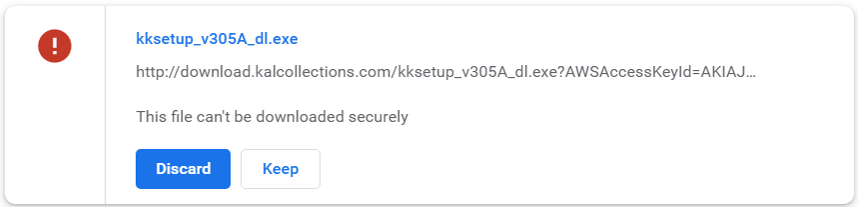
If nothing happens when you click on the download link (or a blank window briefly appears), try right-clicking on the link and then selecting Save link as to save the file to your hard drive. You can view recent downloads by pressing <Ctrl+J> in your browser. If it says that the file "can't be downloaded securely", choose Keep or Keep anyway:
If you are using AOL Mail, your default account settings may be disabling the download link. To fix this, click on the link and when you see the Links Are Disabled pop-up, click on Always enable links for this sender:
| |

| How do I make a backup copy of my downloaded software? | Back to top |
|
To make a backup of your download product, copy the setup file that you downloaded (for example, "kksetup_v305A_dl.exe") onto a USB drive or CD, and keep it with a copy of your download instructions. To reinstall a download product from your backup (or to test that the backup you just made is good), insert the USB drive or CD and use Windows File Explorer to view its contents. Look for the setup file for the product and double-click it (or right-click and choose "Open") to start the installation. TIP: If you purchased multiple download products, you can copy all of their setup files onto the same backup device. More information on how to burn a CD can be found on Microsoft's website here. | |
| Can I install the software onto a second computer? | Back to top |
|
Yes, our End User License Agreement (EULA) allows you to install your licensed software onto two (2) computers (for example, a desktop and a laptop), as long as both are owned by you and not in use at the same time. The complete EULA can be found here. | |
| I saved the setup file to my hard drive but can't find it - where did it go? | Back to top |
|
Most browsers will save downloaded files to your "Downloads" folder by default. If you're having trouble locating a downloaded file, try opening your browser and pressing <Ctrl+J> to view recent downloads. | |
| I get an error when I try to run the setup file that I just downloaded. | Back to top |
|
If you see an "Error reading setup initialization file" or similar Windows error when attempting to run the setup file, the download may have been interrupted or corrupted during the transfer. Try the download again, making sure to choose the "Save" option to save the setup file to your hard drive. Then right-click the file and choose "Properties". In the Properties window, you should see a "Digital Signatures" tab listing one or more signatures from Kaleidoscope Collections, LLC. If the Digitial Signatures tab is not displayed, the download is being corrupted or interrupted before the transfer can complete. Try temporarily disabling any anti-virus or anti-malware programs and then perform the download again. IMPORTANT: Be sure to immediately re-enable these protections when you are done. If the digital signature(s) are correct, but you still can't run the setup file, select the "General" tab in the Properties window. If there is a note saying "This file came from another computer and might be blocked to help protect this computer", click the "Unblock" checkbox, then click OK. | |
| I get a compatibility alert when installing Kaleidoscope Kreator 2.0 on my Windows 10 computer. | Back to top |
|
Older versions of Kaleidoscope Kreator (prior to Kaleidoscope Kreator 3) are not supported on modern Windows platforms. During installation, you may see compatibility alerts for a component called "Microsoft .NET Framework 1.1". This is a Microsoft component that older versions of KK depend on and will attempt to install if necessary. In some cases you can still proceed with the installation, but do so at your own risk. | |
| How do I install Kaleidoscope Kreator from my CD if my computer does not have a CD/DVD drive? | Back to top |
|
Newer computers often do not include an optical drive. If you have the CD version of Kaleidoscope Kreator (or a Template Pack add-on), please use our Technical Support page to request a download replacement. In your request, be sure to include the Name and License Key that came with the CD. | |
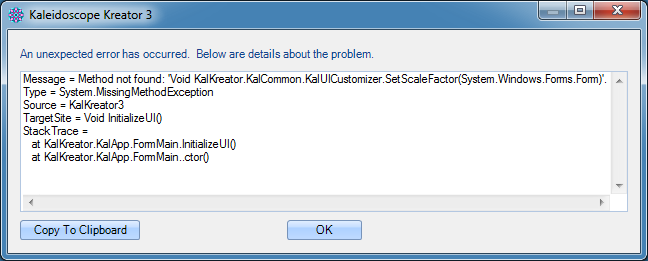
| When I try to start Kaleidoscope Kreator 3, it says "An unexpected error has occurred". | Back to top |
|
If Kaleidoscope Kreator 3 displays the following message on start up:
This error may occur if you installed a Maintenance Update while KK3 was still running. To fix this problem, re-install the Maintenance Update by following these steps:
| |
| What is the .NET Framework and why is it installed when I install Kaleidoscope Kreator? | Back to top |
|
The .NET Framework is a common component from Microsoft that Kaleidoscope Kreator (and many other Windows applications) depends upon in order to function correctly. Kaleidoscope Kreator 3 requires .NET Framework 2.0, which is included by default on Windows Vista and Windows 7. On Windows XP computers, the Kaleidoscope Kreator 3 setup utility checks to see if .NET Framework 2.0 is already installed on your computer, and only installs it as needed. On Windows 8/8.1 computers, some early versions of the Kaleidoscope Kreator 3 setup utility may require the .NET Framework 3.5, which Windows will download and enable "on demand" via Windows Update. | |
| Where do I redeem my prepaid download cards? | Back to top |
|
To redeem a prepaid download card, please click here. |
|
| When I try to enter the code from my prepaid download card, it says it has already been redeemed. | Back to top |
|
You only need to redeem a prepaid download card once. From that point on, your purchase is recorded in our system. If you need to install your purchased downloads again (and you didn't make a backup), click the "Request New Download" button to request a new set of download links and instructions for that item. |
|
| When I enter my license key, Kaleidoscope Kreator says that it could not be validated. | Back to top |
|
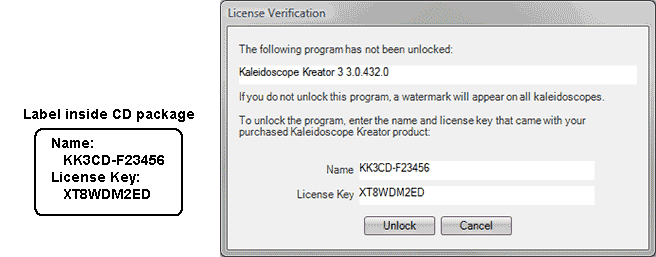
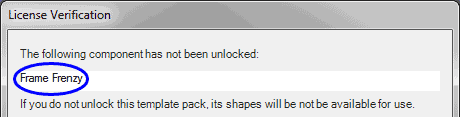
Make sure that you enter both the name and license key exactly as they are shown in your download instructions (or on the label inside the CD packaging). All letters must be entered in UPPER CASE, and there should not be any extra spaces before or after the values you enter: In addition to Kaleidoscope Kreator itself, each add-on Template Pack also comes with its own name and license key values. The License Verification window will indicate which component is being unlocked - make sure you are entering the name and license key values that correspond to the requested component:
| |
| I'm entering the name and license key values correctly, but Kaleidoscope Kreator still won't accept them. | Back to top |
|
If you purchased Kaleidoscope Kreator 3 or a Template Pack as a Prepaid Download Card, make sure you are entering the License Key shown in your download instructions e-mail, and not the code from the download card. You may also have license key problems if you installed the KK3 Maintenance Update without first unlocking KK3. In this case, you will need to remove and then re-install KK3:
| |
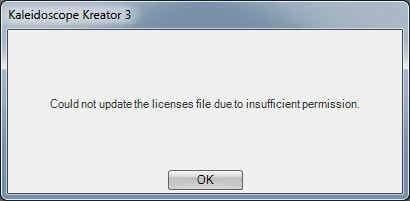
| After I enter the name and license key, I see an error about "insufficient permission". | Back to top |
|
On some older Windows computers, you may see the following message after entering the name and license key:
To fix this problem, follow these steps:
| |
| I have the CD version of Kaleidoscope Kreator (or a Template Pack) but can't find the license key label anywhere. | Back to top |
|
A label containing a name and license key should be found on the inside of your CD packaging. We've had occasional reports of missing license labels - if yours is missing, please contact us and we'll send you a new one ASAP. NOTE: For Kaleidoscope Kreator 2.0 CDs the label should be attached to the Quick Start Guide insert. | |
| Can I install the Kaleidoscope Kreator 3 Upgrade on my new computer without having to install a previous version first? | Back to top |
|
Yes, but only if you have the original factory CD for a previous version of Kaleidoscope Kreator. In this case the Kaleidoscope Kreator 3 Upgrade can directly scan and validate that CD to satisfy its upgrade requirement. NOTE: The following method will not work if your previous KK version was purchased as a download.
If you are upgrading from a downloaded copy of Kaleidoscope Kreator 2.0, you'll need to correctly install and unlock that earlier version before performing the upgrade. If you didn't make a backup of your KK 2.0 download, please contact us. | |
| I'm trying to unlock the Kaleidoscope Kreator 3 Upgrade and it won't recognize that I have a previous version installed. | Back to top |
|
If you are having problems unlocking the Kaleidoscope Kreator 3 Upgrade product on a 64-bit Windows Vista computer, please contact us. Some early revisions of the KK3 Upgrade product may not function correctly on this particular Windows Vista platform. For computers running other versions of Windows, the KK3 Upgrade may not detect the presence of a previous KK version if:
If you have the original factory CD for a previous KK version, the KK3 Upgrade can directly validate that CD to to satisfy its upgrade requirement. See above for details. If you are upgrading from a downloaded copy of Kaleidoscope Kreator 2.0, you'll need to correctly install and unlock that earlier version before performing the upgrade. If you didn't make a backup of your KK 2.0 download, or if you have already tried reinstalling KK 2.0 and KK3 still won't recognize it, please contact us. | |
| Will Kaleidoscope Kreator 3 work with my existing KK 2.0 Template Packs? | Back to top |
|
When you first unlock Kaleidoscope Kreator 3, it will ask if you want to convert earlier template packs. If your KK 2.0 template packs are already installed, clicking "Proceed" will convert them automatically. If you choose to skip this step, you can perform the conversion later by selecting "Tools->Convert Earlier Template Packs..." on the KK3 menu bar. You can also convert a KK 2.0 template pack directly from its installation CD:
Once the template pack conversion has completed, you will see the new shapes in the Select Kaleidoscope Shape window (you may need to close and restart KK3 first). | |
| Will Kaleidoscope Kreator 3 work with my saved KK 2.0 workspaces? | Back to top |
|
Only partially. Because of the extensive design changes that were made for KK3, we weren’t able to fully support opening KK 2.0 workspaces in KK3. The image, rotation and shape are retrieved, but the scale and positioning may be incorrect. The file extension for KK3 workspaces is .kk3. | |
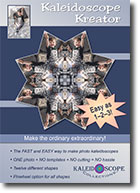
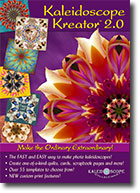
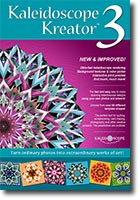
| Which version of Kaleidoscope Kreator do I have? | Back to top | |||
|
If your Kaleidoscope Kreator CD and CD packaging do not indicate any version, then you have the original version (also referred to as Kaleidoscope Kreator 1.0). Here are the cover graphics for the different versions of Kaleidoscope Kreator:
| ||||
| What version of Windows do I need to use Kaleidoscope Kreator 3? | Back to top |
|
Kaleidoscope Kreator 3 is supported on Windows 10, Windows 8/8.1, Windows 7, Windows Vista and Windows XP (with SP3 or later) computers*. Other system requirements:
*Does not include Windows RT or Windows 10 Mobile devices | |
| Can I use Kaleidoscope Kreator on my Mac? | Back to top |
|
Kaleidoscope Kreator is a Windows-only program. To use Kaleidoscope Kreator on your Mac, you'll need to set up your Mac to run Windows (e.g., by using Boot Camp, Parallels Desktop®, VMWare Fusion® or VirtualBox). | |
| Are there any updates for Kaleidoscope Kreator 3? | Back to top |
|
A free maintenance update is available for Kaleidoscope Kreator 3 that addresses a small number of issues that were found since KK3 was initially released. The latest maintenance update (305570) was released in October 2015. Click here to download the latest Kaleidoscope Kreator 3 maintenance update
| |
| Are there any updates for Kaleidoscope Kreator 2.0? | Back to top |
|
A free maintenance update is still also available for very early versions of Kaleidoscope Kreator 2.0 that includes a number of performance improvements and fixes to known problems. This maintenance update was released in August 2006. Subsequent versions of Kaleidoscope Kreator 2.0 (build 2.0.1.0 and later) already contain these improvements and fixes. Click here to download the Kaleidoscope Kreator 2.0 maintenance update | |
| When I try to install my template pack it says Kaleidoscope Kreator is not currently installed, even though KK3 is clearly present on my computer. | Back to top |
|
If your template pack CD came in a plastic DVD-style case, or if the CD itself has a copyright of 2008 or earlier, then the template pack was originally for Kaleidoscope Kreator 2.0 and must be "converted" before it can be used with Kaleidoscope Kreator 3. KK3 has a built-in utility that can perform this conversion directly from the template pack CD. This procedure is described here. | |
| I get an error when I try to install the Quilters' Polygons Template Pack on Windows Vista (or a later version of Windows). | Back to top |
|
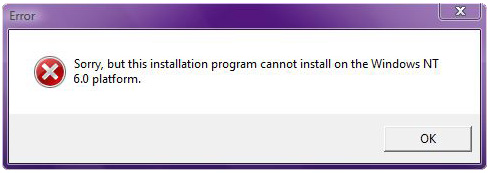
If you are installing a KK 2.0 Quilters' Polygons Template Pack on a computer with Windows Vista or a later version of Windows, you may see an error similar to the following:
If you are installing from a CD and wish to use this template pack with Kaleidoscope Kreator 3, please follow the conversion procedure described here. Otherwise, please contact us to get an updated version of the Template Pack setup file for use on these platforms. | |
| What are Embroidery Collections? | Back to top |
|
Embroidery Collections contain digitized kaleidoscope designs for your embroidery machine. Since the designs are already digitized, they can be loaded directly to your machine without needing any digitizing software. Each Embroidery Collection is available in ART, DST, EXP, HUS, JEF, PES, VIP and VP3 machine formats, and the embroidery designs themselves come in sizes that will fit in a 4-, 5-, 6- or 8-inch hoop. Our kaleidoscope embroidery designs look great when stitched onto regular fabric, but they have also been specially tailored to enhance kaleidoscopes printed on fabric using Kaleidoscope Kreator 3 (see below). | |
| How are Embroidery Collections used with Kaleidoscope Kreator 3? | Back to top |
|
Each design in an Embroidery Collection is specially tailored to match a shape in the corresponding Template Pack for Kaleidoscope Kreator 3. For example, the designs in the Filigrees Embroidery Collection match the shapes in the Filigrees Template Pack for KK3 (sold separately). This means you can print a kaleidoscope onto fabric using KK3, put that fabric in your hoop, and then further embellish it with a matching embroidery design. Each Embroidery Collection includes detailed, step-by-step instructions on how to stablize your fabric, design and print your kaleidoscope, position the fabric in the hoop, and stitch the design on top (see "Instructions-For-KK3.pdf" in the downloaded .zip file). | |
| I just bought an Embroidery Collection - how do I get the shapes into Kaleidoscope Kreator 3? | Back to top |
|
Embroidery Collections contain digitized designs for your embroidery machine. Template Packs add shapes to Kaleidoscope Kreator 3. These are independent products, and are sold separately* For example, if you purchased the Snowflakes Embroidery Collection, and want to have the same shapes available in KK3, you will need to get the Snowflakes Template Pack as well. *Some of our retailers may carry prepaid download cards for an "Embroidery Bundle", which includes both an Embroidery Collection and corresponding Template Pack. | |
| Are there tutorials or guides to help me get started? | Back to top |
|
Kaleidoscope Kreator 3's help system includes a Getting Started guide that has step-by-step instructions on making your first kaleidoscope, and a Reference Guide with detailed descriptions of each feature. To access the help system, click "Help" on the KK3 menu bar, then select either "Getting Started..." or "Kaleidoscope Kreator Help...". A printable PDF version of these documents is available here. The KK3 CD includes a "Quick Start" video that demonstrates basic usage, and a "What's New" video that highlights new features in this latest version of Kaleidoscope Kreator. Both of these videos are also available on our website here. | |
| How do I find the photos on the CD? How do I use my own photos to make kaleidoscopes? | Back to top |
|
To find the sample photos on the Kaleidoscope Kreator CD, put the CD in the CDROM drive, then click on the Open Image button in the toolbar on the left and browse to the CD drive. The photos are in the Sample Photos folder on the CD. The same basic technique is used to find your own photos. Click on the Open Image button and then browse to find your photos on your hard drive.
Windows and Windows Vista are registered trademarks of Microsoft Corporation. | |

